CAO Student Portal Login 2027: Application Status, Fees And Complete Login Guide
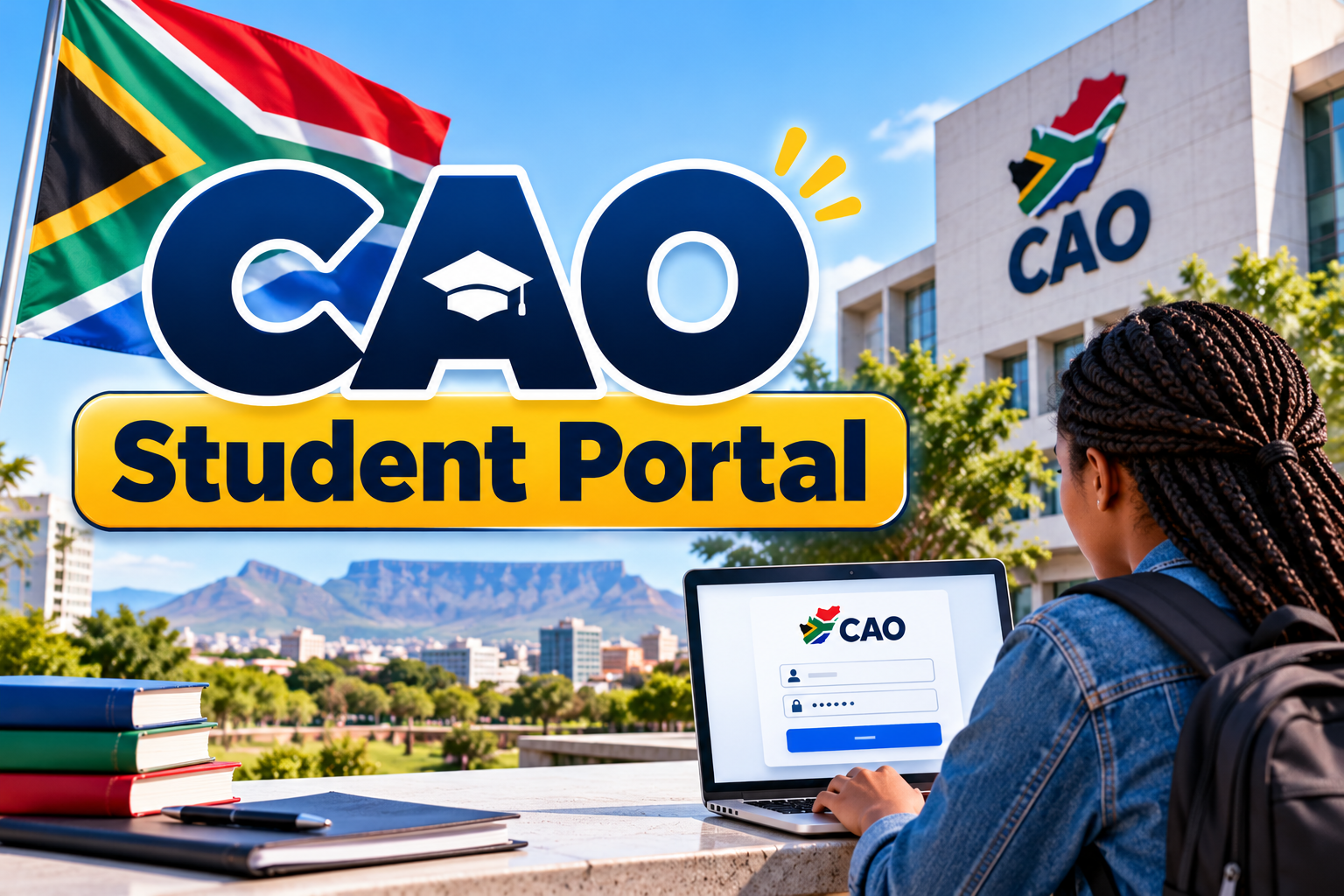
CAO Student Portal Login 2027. The CAO Student Portal is an important online platform for students who want to apply for higher education in South Africa. It allows applicants to manage their applications, check admission updates, upload required documents, pay application fees, and change their study choices when needed. Instead of handling every task separately, students can use the Central Applications Office (CAO) website to access important application services in one place.
If you are planning to study at a college or university that uses the CAO application system, understanding how the portal works can make the application process easier. You can use your CAO number and password to access your account, review your application information, and follow the progress of your selected programmes.
This guide explains how to access the CAO Student Portal, log in to your account, check your application status, upload documents, make payments, change programme choices, and solve common login problems.
What Is the CAO Student Portal?
The Central Applications Office (CAO) is an application service that helps students apply for selected higher education programmes in South Africa. Its website provides information about participating institutions, available programmes, application requirements, and the progress of submitted applications.
The CAO Student Portal is designed to help applicants manage important parts of the application process online. Students can use the available services to review their programme choices, check application progress, update personal details, and complete other required tasks.
CAO Student Portal Login 2027
Students who already have a CAO account can access the applicant login page to manage their applications. You will generally need your CAO number and password to sign in. Follow these steps to access your account:
- Open the official CAO website at https://www.cao.ac.za/.
- Find the Login option on the website.
- Open the applicant login page.
- Select “Yes” if you already have a CAO number and password.
- Enter your CAO number in the required field.
- Type your password carefully.
- Complete any additional verification requested by the website.
- Click the login or submit option to continue.
After logging in, you can access the available services for your application. Depending on your needs, you may check your application progress, upload documents, update your personal details, or change your programme choices.
What Do You Need to Log In?
Before accessing the CAO Student Portal, make sure you have the information required to identify your account. The following table explains the main login requirements.
| Requirement | Purpose |
|---|---|
| CAO number | Identifies your application in the CAO system. |
| Password | Allows you to access your applicant account. |
| South African ID number or passport number | May be required for account recovery and identity verification. |
| Registered cellphone number | Can be used to receive an SMS verification code. |
| Registered email address | Can be used for password recovery and important application messages. |
| Personal information | Details such as your name and surname may be requested during account recovery. |
Your CAO number is an important part of the application process. Keep it somewhere safe so you can find it whenever you need to check your application or contact the CAO office.
How to Check Your CAO Application Status
One of the most useful features of the CAO website is the application status checker. It helps applicants follow the progress of their applications and review available information about their selected programmes. You do not always need to enter the full applicant dashboard to check your application status. The official “Check My Application” service allows you to search using an accepted identification option.
Steps to Check Your Application Status
- Visit the official CAO website.
- Find the “Check My Application” option.
- Open the application status page.
- Select or enter your CAO number, South African ID number, or passport number as requested.
- Submit the information.
- Review the application details displayed on the screen.
Check your application regularly, especially when you are waiting for an institution to make an admission decision. Make sure your contact details are correct so you do not miss important messages. Remember that checking your application status does not guarantee admission. The institutions you have applied to make their own selection and admission decisions.
How to Upload Documents on the CAO Portal
Applicants may need to provide supporting documents during the application process. These documents help institutions review the information supplied in an application. Depending on your circumstances and the institution’s requirements, you may need to provide documents such as:
- A copy of your South African ID.
- Your passport, if applicable.
- Your National Senior Certificate (NSC) results.
- Your latest available academic results.
- Other supporting documents requested for your application.
Steps to Upload Your Documents
- Open the official CAO website.
- Select “Upload My Documents”.
- Log in using your CAO number and password.
- Review the document requirements shown on the website.
- Select the appropriate document or upload option.
- Choose the correct file from your device.
- Follow the instructions to submit the document.
- Check that the upload has been completed successfully.
Before uploading a file, check that it is readable and contains the correct information. Use a clear scan or photograph when permitted, and make sure you select the correct document.
CAO Application Fees for 2027
Applicants should understand the application fees before submitting their applications. The amount depends on the entry period, applicant category, and applicable fee rules.
For the January 2027 entry, the official CAO information lists the following administration fees for South African citizens.
| Payment deadline | Administration fee |
|---|---|
| Received on or before 31 October 2026 | R250 |
| Received on or after 1 November 2026 | R470 |
These fees relate to the administration fee for the January 2027 entry. Applicants applying for other entry periods should check the relevant fee schedule. International applicants have a different fee structure, so they should check the official CAO website for the amount that applies to them.
Important Information About Application Fees
- Submit your application and payment as early as possible.
- Check the deadline for your chosen programme and entry period.
- Confirm the amount that applies to your applicant category.
- Keep your payment confirmation or receipt.
- Check that the payment has been recorded by CAO.
An application may not proceed as expected if the required fee has not been received. Follow the official payment instructions and check your application information after making a payment.
How to Pay Your CAO Application Fee
The CAO website provides payment options for applicants. Depending on the available payment methods, you may be able to pay online or through an EasyPay outlet.
Online Payment Steps
- Visit https://www.cao.ac.za/.
- Open the “Payments” section.
- Enter your CAO number when requested.
- Select the option to make a payment.
- Choose an available payment method.
- Follow the payment instructions.
- Save your confirmation details.
Paying Through an EasyPay Outlet
If you choose to pay through an EasyPay outlet, follow the instructions provided by CAO.
- Find your EasyPay payment reference number.
- Visit an outlet that supports the payment.
- Provide the required payment reference.
- Pay the amount shown for your application.
- Keep your receipt for future reference.
The CAO website lists outlets such as Shoprite, Checkers, and Pick n Pay among the places where applicable EasyPay payments can be made. Always confirm the amount and payment reference before completing a transaction. If your payment does not appear on your account, contact CAO using its official contact details.
What Is the CAO Change of Mind Feature?
The “Change of Mind” feature allows eligible applicants to change their programme choices after submitting an application. You may need this service if you want to select a different course, add another programme, or change the order of your existing choices.
For example, a student may decide to study a different subject after learning more about available programmes. Another applicant may want to give a preferred programme a higher position on their application. The Change of Mind service can help applicants update their choices without starting a completely new application when the existing application remains eligible for changes.
How to Change Your Programme Choices
- Visit the official CAO website.
- Open the “Change of Mind” section.
- Log in using the requested account information.
- Review your current programme choices.
- Select the programmes you want to change, add, or retain.
- Arrange all your choices in your preferred order.
- Review the complete list carefully.
- Submit the Change of Mind request.
- Pay the applicable administration fee.
The official CAO information lists a R140 Change of Mind administration fee for adding, changing, or renumbering programme choices. You must follow the instructions for your application and entry period. A Change of Mind request generally needs to be paid for before it can be made available to the institutions.
Important: Include the existing programmes you want to keep when submitting your revised list. Review the choices carefully before submission because mistakes may not be reversible.
How to Update Your Personal Details
Keeping your contact information correct is an important part of managing your CAO application. If your cellphone number, email address, or other personal information changes, update your details through the official website. Correct information helps you receive application messages, verification codes, and updates from the CAO office.
Steps to Update Your Details
- Visit https://www.cao.ac.za/ website.
- Select “Update My Details”.
- Follow the instructions to access your application.
- Choose the information you need to change.
- Enter the updated information carefully.
- Review your changes.
- Select “Process My Updates” or the relevant submission option.
- Check the confirmation message.
According to CAO guidance, applicants can update their contact information online. Make sure your application is completed and paid for where required before attempting to make changes. After submitting an update, check that the information is correct. If you cannot access the service, contact the CAO office for assistance.
What If You Forget Your CAO Password?
Forgetting your password does not necessarily mean you have lost access to your application. The CAO login and recovery pages provide options for applicants who need a new password or cannot remember their login details. You may need your CAO number, ID or passport number, surname, and access to the email address or cellphone number registered with CAO.
Steps to Recover Your Password
- Open the official CAO applicant login page.
- Select the password recovery option.
- Enter the information requested by the website.
- Provide your CAO number and identification details where required.
- Choose an available verification method, such as email or SMS.
- Enter the verification code if requested.
- Follow the instructions to obtain or set a new password.
- Log in again using your updated credentials.
Use the official recovery page:
If you no longer have access to your registered cellphone number or email address, you may need to contact CAO directly. Do not share your password or verification code with another person.
CAO 2027 Application Links
The following table brings together the main CAO services that applicants may need.
| Service | Purpose | Official link |
|---|---|---|
| CAO Home Portal | Find application information and available services. | https://www.cao.ac.za/ |
| Applicant Login | Access your applicant account. | https://www.cao.ac.za/LoginApplicant.aspx?Content=COM |
| Check My Application | Check the progress of your application. | https://www.cao.ac.za/MyApplicationLogin.aspx |
| Apply Online | Start a new application. | https://cao.ac.za/Apply.aspx?content=Apply |
| Upload Documents | Submit required supporting files. | https://www.cao.ac.za/DocumentUpload/MyDocumentUpload.aspx |
Always check the address before entering your personal information. If a link changes or no longer works, open the official CAO homepage and find the required service through its menus.
CAO Contact Details and Office Hours
If you have trouble logging in, cannot recover your password, or need help with an application, you can contact the CAO office.
| Contact information | Details |
|---|---|
| Phone number | (031) 268-4444 |
| Email address | [email protected] |
| Monday to Thursday | 08:00–16:30 |
| Friday | 08:00–14:00 |
| Official website | https://www.cao.ac.za/ |
Office hours may exclude public holidays. If you are calling from outside South Africa, the international phone format is +27 31 268 4444. When contacting CAO, explain your problem clearly. If you are asking about an existing application, have your CAO number available. Do not send your password or verification code by email.
Common CAO Student Portal Problems and Solutions
Applicants may sometimes experience login errors or difficulties when using the website. Many problems can be addressed by checking the information entered and following the official instructions.
1. Incorrect CAO Number or Password
Make sure you have entered the correct CAO number and password. Check for typing errors and ensure that you are using the correct account details.
2. Forgotten Password
Use the password recovery option on the official login page. Follow the identity verification steps and check your registered email address or cellphone for instructions.
3. Verification Code Not Received
Check whether your registered email address or cellphone number is correct. Look in your email spam or junk folder if you selected email verification. If you no longer have access to your registered contact details, contact CAO.
4. Application Status Not Showing Expected Information
Check that you entered the correct CAO number, ID number, or passport number. If the information still appears incorrect or incomplete, contact CAO or the institution responsible for the programme.
5. Documents Not Uploading
Check the file format, file size, and other requirements shown on the upload page. Try using a stable internet connection and make sure the document is saved correctly on your device.
6. Payment Not Showing in Your Account
Keep your payment receipt and reference number. Allow for the payment to be recorded according to the official process. If the payment remains missing, contact CAO with the relevant payment details.
7. Trouble Changing Programme Choices
Make sure your application meets the requirements for a Change of Mind request. Review the choices, submit the request correctly, and pay the required fee.
Important Tips for CAO 2027 Applicants
Managing your application carefully can help you avoid common mistakes and missed deadlines. Follow these practical tips:
- Apply early: Do not wait until the last moment to submit your application.
- Check programme requirements: Make sure you meet the academic and other entry requirements for your chosen courses.
- Keep your CAO number safe: You may need it to log in, check your status, make payments, or contact the office.
- Use correct information: Enter your name, identification details, academic results, and contact information carefully.
- Upload clear documents: Make sure every required document is readable and complete.
- Monitor application progress: Check your status regularly for updates.
- Review programme choices: Make sure your choices appear in the order you prefer.
- Keep payment records: Save receipts and payment reference numbers.
- Check official announcements: Deadlines and programme information may differ between institutions and entry periods.
- Use official links: Protect your personal information by avoiding unofficial login pages.
Students should also remember that submitting an application does not automatically mean they have been accepted. Admission decisions are made by the institutions, based on their requirements and selection processes.
FAQs About CAO Student Portal
What is the CAO Student Portal?
The CAO Student Portal is an online service that helps applicants manage applications for participating higher education institutions in South Africa.
How do I log in to the CAO Student Portal?
Visit the official CAO website, open the applicant login page, and enter your CAO number and password. Complete any additional verification requested.
How can I check my CAO application status?
Open the “Check My Application” page and enter your CAO number, South African ID number, or passport number as requested.
What is the CAO application fee for 2027?
For South African citizens applying for January 2027 entry, the administration fee is R250 if received by 31 October 2026 and R470 from 1 November 2026 onward. Other applicant categories and entry periods may have different fees.
How much is the CAO Change of Mind fee?
The stated Change of Mind administration fee is R140 per submission. Check the official CAO fee information before paying.
Can I change my course after submitting my application?
Eligible applicants can use the Change of Mind service to update or rearrange their programme choices. Follow the official instructions and pay the applicable fee.
How do I upload documents to CAO?
Open the “Upload My Documents” service, log in, and follow the instructions to submit the required files.
What should I do if I forget my CAO password?
Use the password recovery option on the official applicant login page. You may need your CAO number, identification details, and access to your registered email address or cellphone.
How can I contact CAO?
You can call (031) 268-4444 during the listed office hours or email [email protected].
Is the South African CAO portal the same as the Irish CAO portal?
No. The Central Applications Office discussed in this guide serves participating higher education institutions in South Africa. Ireland has a separate CAO system for applications to higher education there. Make sure you use the correct service for your country.
Conclusion
The CAO Student Portal makes it easier for applicants to manage important parts of the higher education application process in South Africa. Through the official website, you can log in to your account, check your application status, upload documents, make payments, update personal information, and change your programme choices when eligible. For the 2027 academic year, applicants should pay attention to application fees, payment deadlines, document requirements, and updates from their selected institutions. Keeping your CAO number safe and your contact details up to date can also help you manage your application more smoothly.