How Do I Get My CAO Password? Easy Guide to Recover and Reset Your CAO Login

How Do I Get My CAO Password? Forgetting your CAO password can be frustrating, especially when you need to check your application, upload documents, update your details, or manage your study choices. The good news is that you can usually recover or reset your CAO password by following a few simple steps. The Central Applications Office (CAO) provides an online system where applicants can manage their applications. Your CAO number and password are important because they give you access to your personal application dashboard.
If you have forgotten your CAO password, do not worry. You do not normally need to create a completely new application. Instead, you can use the password recovery option on the official CAO website and follow the verification steps.
In this guide, you will learn how to get your CAO password, how to reset a forgotten password, what information you need, how to log in, and what to do if you have problems accessing your account.
What Is a CAO Password?
A CAO password is a login credential used to access your CAO application account. When you apply through the Central Applications Office, you receive a CAO number and password that allow you to access different application services. Your CAO login can be used for activities such as:
- Checking your application status
- Uploading required documents
- Updating personal details
- Managing application choices
- Using the Change of Mind option when available
- Viewing information related to your application
- Managing other application-related activities
Because your account contains personal application information, you should keep your password private and avoid sharing it with other people.
How Do I Get My CAO Password?
If you are a new applicant, your CAO password is normally provided during the application process. If you have already registered but forgotten your password, you can use the password recovery option. The general process is simple:
- Visit the official CAO website.
- Open the appropriate login section.
- Select the password recovery option.
- Enter the requested personal information.
- Complete the verification or captcha.
- Receive the reset information by email or SMS.
- Use the temporary password or verification details to access your account.
- Create a new permanent password if the system asks you to do so.
Let’s look at each step in more detail.
Step 1: Visit the Official CAO Website
Start by opening your internet browser and visiting the official CAO website:
Always make sure you are using the official CAO website when entering your personal information. Avoid entering your CAO number, ID number, passport number, password, or other personal details on unknown websites. The official CAO website is the main place to access CAO application services and account-related options.
Step 2: Open the CAO Login Page
Once you are on the CAO website, look for the login option that matches the service you want to use. Depending on what you need to do, you may see options connected with activities such as:
- Upload My Documents
- Check My Application
- Change of Mind
- Update My Details
- Other application services
Choose the relevant option to continue.
Step 3: Select the Forgot Password Option
If you already have a CAO number but cannot remember your password, look for the password recovery option on the login page. The option may be shown as “Forgot Password Detail” or a similar password recovery option.
Click it to begin the recovery process. This is an important step because you should not keep guessing your password again and again. If you are unsure about your password, use the official recovery process instead.
Step 4: Enter Your CAO Number
You may be asked to provide your CAO number. Your CAO number is the unique number connected to your application. It is important to keep this number safe because you may need it whenever you access your CAO account or communicate with CAO about your application. If you have forgotten your CAO number as well, check your previous CAO emails, messages, or application records for the number.
Step 5: Enter Your ID or Passport Number
The password recovery process may also ask for the ID number or passport number that you used during your application. Enter the information exactly as it was provided when you registered. Be careful when entering your details. A small mistake can prevent the system from matching your information with your application.
Step 6: Enter Your Surname
You may also need to enter your surname. Make sure the surname matches the information on your CAO application. Avoid adding unnecessary spaces or changing the spelling. The system uses your personal details to confirm that the account belongs to you.
Step 7: Complete the Captcha or Validation Code
A captcha or validation code may appear during the password recovery process. Enter the code exactly as shown on the screen. The purpose of this check is to help confirm that the request is being made by a real person rather than an automated system. If the code is difficult to read, use the option provided on the page to generate another code.
Step 8: Receive Your Password or Verification Code
After you submit your details successfully, the CAO system may send password recovery information to your registered contact details. Depending on the process available to you, this can include an email, SMS, verification code, OTP, reset link, or temporary password. Check the contact details you used when completing your CAO application.
If You Receive an Email
Open the email account linked to your CAO application and check your inbox. If you cannot see the message, check:
- Spam folder
- Junk folder
- Promotions folder
- Other filtered folders
Make sure you are checking the correct email address.
If You Receive an SMS
Check the cellphone number registered with your CAO application. If a verification code or temporary password is sent by SMS, enter it exactly as instructed on the CAO website.
Step 9: Log In to Your CAO Account
Once you receive your new password or temporary login details, return to the CAO login page. Enter:
- Your CAO number
- Your password or temporary password
Then click the Login button. If the details are correct, you should be able to access your CAO account.
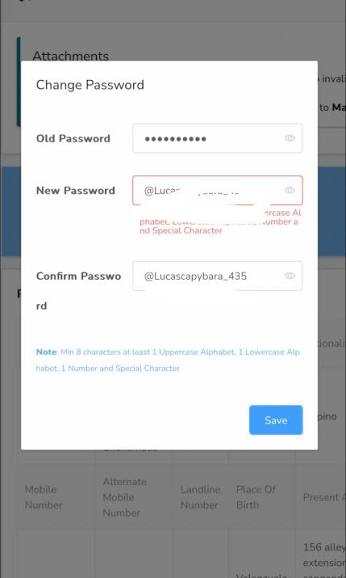
Step 10: Create a Permanent Password
If the CAO system provides you with a temporary password, you may need to change it after logging in. Look for the Change Password option and create a new password that you can remember.
Choose a password that is difficult for other people to guess. A good password should not contain information that is easy for someone else to know, such as your name, date of birth, or phone number.
What Do You Need to Log In to CAO?
Before trying to log in, it is helpful to have your important information ready.
| Requirement | Why You May Need It |
|---|---|
| CAO Number | Identifies your application |
| ID Number | Used for identity verification |
| Passport Number | May be used by applicants who applied with passport details |
| Registered Cellphone Number | Used for SMS or verification |
| Registered Email Address | Used for emails and recovery information |
| Password | Required to access your account |
| Verification Code | May be required during password recovery |
Keeping these details available can make the recovery process much easier.
What Documents Do You Need for CAO Uploads?
Getting your password is only the first step if you need to upload documents to your CAO account. Before logging in, prepare the documents you may need for your application. Your files should be:
- Saved on your computer, phone, USB, or other suitable device
- Clear and easy to read
- In an accepted file format
- Properly named
- Ready to upload when required
PDF files and clear image files may be used depending on the document and the requirements shown by CAO. It is a good idea to prepare your documents before starting the upload process so you do not waste time after logging in.
How to Complete CAO Login Step by Step
Once you have your password, logging into your account is generally straightforward.
Step 1: Open the CAO Website
Go to: www.cao.ac.za
Step 2: Choose the Required Login Option
Select the login service that matches what you want to do. For example, you may need to access:
- Upload My Documents
- Check My Application
- Change of Mind
- Update My Details
Step 3: Confirm Your Login Details
If you already have your CAO number and password, select the option to continue.
Step 4: Enter Your CAO Number
Type your CAO number carefully into the required field.
Step 5: Enter Your Password
Enter your current password. If you have received a temporary password, use it exactly as provided.
Step 6: Click Login
Click the Login button to continue.
Step 7: Open Your Dashboard
After a successful login, you can access your account and use the services available to you. Depending on your application and the services currently available, you may be able to check your application, update information, upload documents, or manage application choices.
What If I Forgot My CAO Password?
If you forgot your password, there is no need to panic. Use the password recovery option on the official CAO website. The basic process is:
- Visit the CAO website.
- Open the relevant login page.
- Select Forgot Password Detail or the available password recovery option.
- Enter your CAO number.
- Enter your ID or passport number if requested.
- Enter your surname.
- Complete the captcha or validation code.
- Provide your registered email address or cellphone number if requested.
- Submit the request.
- Check your email or SMS for the recovery information.
- Use the temporary password, OTP, or reset instructions.
- Log in to your CAO account.
- Change your password if required.
Following the instructions shown on the CAO website is important because the exact recovery process can change over time.
Why Is My CAO Password Not Working?
There can be several reasons why your password does not work.
Incorrect Password
The most common reason is simply entering the wrong password. Check that you have typed every character correctly.
Incorrect CAO Number
Make sure you are using the correct CAO number associated with your application.
Wrong Personal Details
If you are trying to recover your password, check that your ID, passport number, surname, email address, or cellphone number matches your application information.
Temporary Password Expired
If CAO provides a temporary password with a limited validity period, use it within the time given in the instructions. If the temporary password has expired, start the recovery process again if the system allows you to do so.
Email Not Received
If you are waiting for an email, check your spam and junk folders. Also confirm that you are checking the email address connected to your CAO application.
SMS Not Received
If you are expecting an SMS, check that you are using the cellphone number registered with your application and that your phone can receive messages.
Tips to Keep Your CAO Password Safe
Once you recover your password, take a few simple steps to protect your account.
- Do not share your password with friends or strangers.
- Avoid using the same password for every account.
- Do not save your password on a public computer.
- Keep your CAO number in a safe place.
- Use a password that is difficult to guess.
- Be careful with emails or messages asking for your login information.
- Always check that you are using the official CAO website.
Keeping your login details safe can help prevent problems when you need to access your application later.
Can I Get My CAO Password Without Starting a New Application?
In most cases, if you already have a CAO application and have forgotten your password, you should use the password recovery process rather than creating another application. Creating another application simply because you forgot your password may cause unnecessary confusion. Instead, first try to recover your existing login using the official CAO password recovery option.
What If I Cannot Recover My CAO Password?
If the normal recovery process does not work, carefully check the information you entered. Make sure your:
- CAO number is correct
- ID or passport number is correct
- Surname matches your application
- Email address is correct
- Cellphone number is correct
If you still cannot access your account, contact CAO support through the official contact information provided on the CAO website. When contacting support, explain the problem clearly. Do not send your password to anyone.
FAQs About CAO Passwords
How do I get my CAO password?
You can get your CAO password during the initial online application process. If you forget it later, use the password recovery option on the official CAO website and follow the instructions.
What information do I need to reset my CAO password?
You may need your CAO number, ID or passport number, surname, and registered cellphone number or email address. The exact information requested can depend on the recovery process available.
Where can I reset my CAO password?
You should use the official CAO website at www.cao.ac.za and open the appropriate login or password recovery section.
Can I receive my CAO password by SMS?
If your registered cellphone number is supported for the recovery process, CAO may send a verification code, OTP, or other login information by SMS.
Can I receive my CAO password by email?
If your email address is registered with your CAO application, password recovery information may be sent to that address.
What is a CAO number?
A CAO number is the unique number connected to your application. You may need it when logging in, checking your application, or recovering your password.
What should I do if I lose my CAO number?
First, check your previous CAO emails, messages, or application records. If you still cannot find it, use the official CAO support channels for assistance.
Conclusion
Getting your CAO password back is usually a simple process when you have your application details available. Whether you are a new applicant looking for your first login details or an existing applicant who has forgotten a password, the official CAO website provides the main route for accessing your account. If you have forgotten your password, start by visiting www.cao.ac.za, open the correct login section, and look for the password recovery option. You may need to provide your CAO number, ID or passport number, surname, and registered contact details.