How to Login CAO Portal For 2027? Complete Login Guide
How to Login CAO Portal For 2027? If you have applied through the Central Applications Office (CAO) for 2027 entry, you may need to log in to the CAO portal to check your application, upload documents, update your personal details or manage other application information. Knowing the correct CAO login process can save your time and help you avoid common login problems. The CAO website is used by students applying to participating institutions in South Africa. For 2027 entry, the official CAO website provides tools such as Check My Application, Upload My Documents, Change of Mind, Update My Details, and Available Programmes.
This guide explains how to login CAO portal for 2027 in simple steps. It also explains what information you need, how to recover your password, what to do if you cannot log in, and what you can do after accessing your CAO account.
What Is the CAO Portal?
The Central Applications Office (CAO) is an online application platform used by students who want to apply for selected programmes at participating higher education institutions in South Africa. After submitting your application, the CAO portal becomes important because you may need to return to your application several times. For example, you can use the website to check your application progress, upload required documents, update certain information, and review your application details.
For 2027 entry, the official CAO website has a dedicated Check My Application option. Applicants can use their CAO Number, ID Number, or Passport Number to check their application progress.
What Do You Need Before CAO Login?
Before you start the CAO portal login, keep your information ready. This can make the process much easier and reduce the chance of entering incorrect details. Depending on the CAO service you want to use, you may need:
- Your CAO Number
- Your CAO password
- Your South African ID Number, where applicable
- Your Passport Number, if you applied as an international applicant
- The cellphone number registered on your CAO application
- Access to the email address used during your application
The CAO states that your CAO number and password are important account details. When an applicant continues with an online application, the CAO number, password and EasyPay number are provided and are also sent to the email address supplied during the application process.
How to Login CAO Portal For 2027?
The login process depends slightly on the CAO service you want to access. If you simply want to check your application, you can use the Check My Application option. If you want to access other applicant functions, the CAO may ask for your CAO number and password. Follow the steps below.
Step 1: Visit the Official CAO Website
First, open your web browser on your phone, tablet, or computer. Go to the official Central Applications Office website at: Official “CAO” Website
Always use the official CAO website when entering your personal information. Avoid entering your CAO number, password, ID number, or other private details on unofficial websites. The CAO homepage currently includes options such as Check My Application, Upload My Documents, Change of Mind, Update My Details, and Available Programmes.
Step 2: Select the Correct CAO Login Service
Once the CAO homepage opens, look for the service you need. For example, you may see options for:
- Check My Application
- Upload My Documents
- Update My Details
- Change of Mind
- Other CAO applicant services
If your main purpose is to see the progress of your application, select Check My Application. The official CAO Check My Application page allows applicants to select a CAO Number, ID Number, or Passport Number before checking their application.
Step 3: Enter Your CAO Number or Identification Details
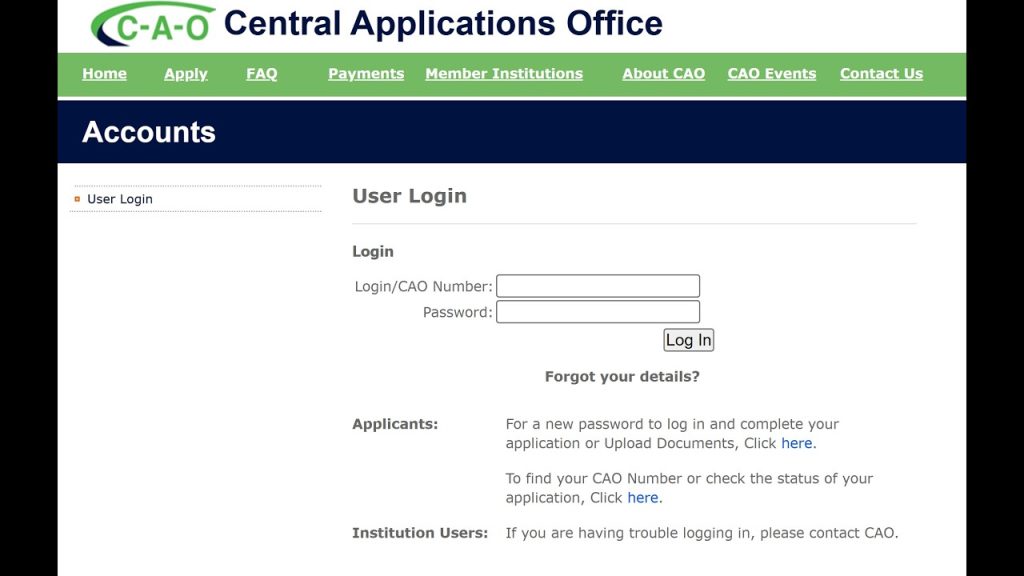
If you are using the normal applicant login, enter your CAO Number in the required field. The CAO login system provides a login field for the CAO number and password. For application status checking, the system can also accept:
- CAO Number
- ID Number
- Passport Number
Make sure that the information you enter matches the information connected to your CAO application.
Step 4: Enter Your Password
Next, enter the password connected to your CAO account. Check the password carefully before continuing. If your password is case-sensitive, make sure you enter capital and small letters correctly. If you recently changed your password, use the new password rather than an older saved password.
Step 5: Click Login
After entering your required details, check everything one more time. Then click the Login button. If your information is correct, you should be taken into the relevant CAO service or applicant area.
How to Check CAO Application Without Normal Login?
One important point is that checking your application status is not exactly the same as accessing your full applicant account. If you only want to check your 2027 application progress, go to the CAO homepage and select Check My Application. The official system allows you to use your CAO Number, ID Number, or Passport Number.
Steps:
- Visit the official CAO website.
- Select Check My Application.
- Choose your identification option.
- Enter your CAO Number, ID Number, or Passport Number.
- Submit the details.
- Review the application information displayed.
This option is useful when you mainly want to know the current progress of your application.
How to Login CAO Portal to Upload Documents?
Applicants may also need to log in when they want to upload documents. The official CAO instructions state that applicants need their CAO/ID Number and either access to the cellphone number entered on the application or access to the email address used on the application.
Steps:
- Open the official CAO website.
- Select Upload My Documents.
- Follow the login instructions shown on the screen.
- Enter your required CAO or identification details.
- Complete the verification process if requested.
- Log in to the document upload area.
- Select the required document.
- Follow the instructions to upload and submit it.
The CAO’s 2027 application information also says applicants should click Upload My Documents on the homepage, log in, and follow the onscreen instructions.
What Documents May Be Needed?
The documents you need can depend on your application and the requirements of the institution or programme. The CAO’s document upload instructions identify the following as minimum documents:
- Copy of your ID
- Highest qualification achieved
Additional documents may also be requested by an institution. Make sure your documents are clear and saved in an accessible location before starting the upload process.
How to Login CAO to Update My Details?
If your contact or personal information has changed, the CAO website provides an Update My Details service. The official CAO instructions say applicants can go to the website, select Update My Details, continue to update the application, and then log in. Once inside, applicants can select the information they want to change and process the updates.
Steps:
- Go to the official CAO website.
- Click Update My Details.
- Select the option to continue and update your application.
- Log in using your required CAO or identification details.
- Select the information you want to change.
- Review your updated details.
- Click Process My Updates.
- Wait for the confirmation message.
After submitting an update, the CAO says the updated information is made available to institutions.
Forgot Your CAO Password? Here Is What to Do
Forgetting your CAO password is a common problem, but the official CAO website provides a password recovery option. On the CAO login page, applicants can use the Forgot your details? option. The system asks for information such as the CAO number, ID or passport details, surname, and a verification code. Applicants can choose to receive the verification code by SMS or email, depending on the contact information held by CAO.
Steps:
- Open the official “CAO login” page.
- Select the option for forgotten details.
- Enter your CAO Number.
- Select the relevant ID type.
- Enter your ID or Passport Number.
- Enter your surname.
- Complete the captcha.
- Select SMS or email for verification.
- Enter the verification code when requested.
- Follow the instructions to receive or change your password.
According to CAO guidance, a temporary password may be sent after the system verifies your details. The temporary password is valid for 24 hours, after which you are required to use the change-password function to set a permanent password.
CAO Login Not Working? Try These Solutions
Sometimes students cannot access the portal even when they believe their information is correct. Before contacting CAO, check the basic details again.
Check Your CAO Number
Make sure your CAO number is entered correctly. Avoid adding extra spaces or using an incorrect number.
Check Your Password
Passwords can be difficult to enter correctly, especially when they contain capital letters, numbers, or special characters. Carefully check what you have entered.
Use the Correct Email or Cellphone
If CAO sends a verification code, you need access to the email address or cellphone number registered on your application. CAO specifically notes that the verification process uses the contact details held on its records.
Try Password Recovery
If you cannot remember your password, use the official password recovery process instead of repeatedly entering incorrect passwords.
Check Your Internet Connection
A weak internet connection can also cause the login page to load incorrectly. Try refreshing the page or using a stable internet connection.
Try Another Browser
If the page does not work properly, try another updated browser or clear your browser cache before attempting the login again.
What Can You Do After CAO Login?
After successfully accessing the CAO portal, you may be able to manage different parts of your application depending on the service you opened. Important CAO online services include:
- Check your application progress
- Upload required documents
- Update personal details
- Process a Change of Mind
- Review application information
- Check programme-related information
The CAO homepage currently lists these services for applicants and also provides 2027 Entry information, including a 2027 Entry Handbook and Learner Guide.
Why Should You Check Your CAO Application Regularly?
Submitting your application is not always the end of the process. Students should keep an eye on their application because the CAO portal can provide important information about the progress of an application. The CAO explains that applicants can use Check My Application to follow their application progress. Institutions make the selection decisions, while CAO manages the application process and communicates relevant information.
Regular checking can help you notice if:
- A document is required.
- Your application information needs attention.
- There is an update on your programme choice.
- Your contact information needs to be changed.
- An institution has made a decision.
CAO Login 2027: Important Tips for Students
Keep your CAO login details safe throughout the application process. Your CAO number is an important reference for payments, correspondence, queries, and checking your application progress. Here are some useful tips:
- Save your CAO number somewhere safe.
- Do not share your password with other people.
- Keep access to your registered email address.
- Keep your registered cellphone number active.
- Check your application regularly.
- Upload documents in the correct format.
- Use the official CAO website for login.
- Read CAO notices before making changes.
- Keep copies of important application information.
CAO 2027 Login vs Check My Application
Many students use the words CAO login and CAO application status check as if they mean the same thing. They are related, but they can serve different purposes.
| CAO Service | Main Purpose | Common Information Needed |
|---|---|---|
| CAO Login | Access applicant services | CAO Number + Password |
| Check My Application | Check application progress | CAO Number, ID Number or Passport Number |
| Upload My Documents | Submit required documents | CAO/ID Number + registered contact access |
| Update My Details | Change certain application details | CAO/ID Number + password/contact access |
| Change of Mind | Manage programme choices | CAO/ID Number + registered contact access |
The exact information requested can depend on the service you select, so always follow the instructions displayed on the official CAO website.
CAO 2027 Login Important Reminder
Students applying for 2027 entry should use the current information shown on the official CAO website because programme closing dates and application information can vary. The CAO currently lists different closing dates for some 2027 programmes. It also explains that some programmes may not accept late applications, while other programmes can have different closing dates. Therefore, do not rely only on old CAO information when planning your application.
CAO Contact Details for Login Problems
If you cannot resolve a login problem through the online options, you can contact the CAO directly. The CAO currently lists its Call Centre number as:
- 031 268 4444
The 2027 CAO application information also provides this number for application progress enquiries. When contacting CAO, keep your application information ready. This may include your:
- CAO Number
- ID or Passport Number
- Full name
- Registered cellphone number
- Registered email address
Do not send your password to anyone when asking for help.
FAQs About CAO Login 2027
How do I login CAO portal for 2027?
Go to the official CAO website and select the relevant applicant service. For a normal applicant login, enter your CAO Number and password. If you only want to check your application, use Check My Application, where you can enter your CAO Number, ID Number, or Passport Number.
Can I check my CAO application with my ID number?
Yes. The official Check My Application service allows applicants to select an ID Number and use it to check application progress. Passport Number is also available as an option.
What if I forgot my CAO password?
Use the password recovery option on the official CAO login page. You may need to provide your CAO number, ID or passport details, surname, and complete a verification process. A verification code can be sent through SMS or email using the contact details held by CAO.
Can I upload documents after logging in?
Yes. CAO provides an Upload My Documents service. Applicants need the required identification details and access to the cellphone or email address registered on their application.
Can I update my CAO details online?
Yes. The CAO provides an Update My Details option. After logging in, you can select the information you need to update and submit the changes through the online system.
Is the CAO login the same as checking application status?
Not always. The CAO has a separate Check My Application service for tracking application progress. The official page allows users to check using a CAO Number, ID Number, or Passport Number.
What is the official CAO website?
The official South African Central Applications Office website is cao.ac.za. Applicants should use the official website when checking applications, logging in, uploading documents, or managing application information.
Conclusion
The CAO login process for 2027 is straightforward when you have the correct information ready. Start by visiting the official CAO website and select the service you need. For a full applicant login, you generally need your CAO Number and password, while the Check My Application service allows you to check your progress using your CAO Number, ID Number, or Passport Number. If you forget your password, use the official recovery option and follow the verification instructions. You should also keep your registered cellphone number and email address accessible because they may be needed for verification.